The short version
- Shopify's checkout already does much of what checkout advice tells you to add: it's one page by default, the express pay buttons sit at the start, and it suggests addresses as customers type.
- What you can change depends on your plan. From the Basic plan up, you can brand the checkout and add apps to the thank you and order status pages; on Shopify Plus, apps can also change the information, shipping and payment steps.
- Test one change at a time. On the Grow plan or higher, Shopify's Rollouts can run a change as an experiment against your current checkout.
- The checklist at the end is where to start. See our performance and conversion services, or talk to us.
A lot of checkout advice tells you to add things Shopify's checkout now does on its own. So before you change anything, check what yours already does. This guide covers what's built in, what you can change on your plan, and how to test a change before every customer sees it. The details come from Shopify's help center as of October 2026.
One page, by default
Shopify's checkout is one page by default: customers enter and review their contact details, shipping and payment on a single page. A three-page checkout, with information, shipping and payment on separate pages, is a setting. Both layouts collect the same information and support the same customizations, and the same checkout analytics are available in your admin.
To check yours, go to Settings > Checkout in your Shopify admin, click Edit next to your checkout configuration, then open the settings (the gear icon) in the checkout and accounts editor and look under Checkout layout.
Express pay comes first
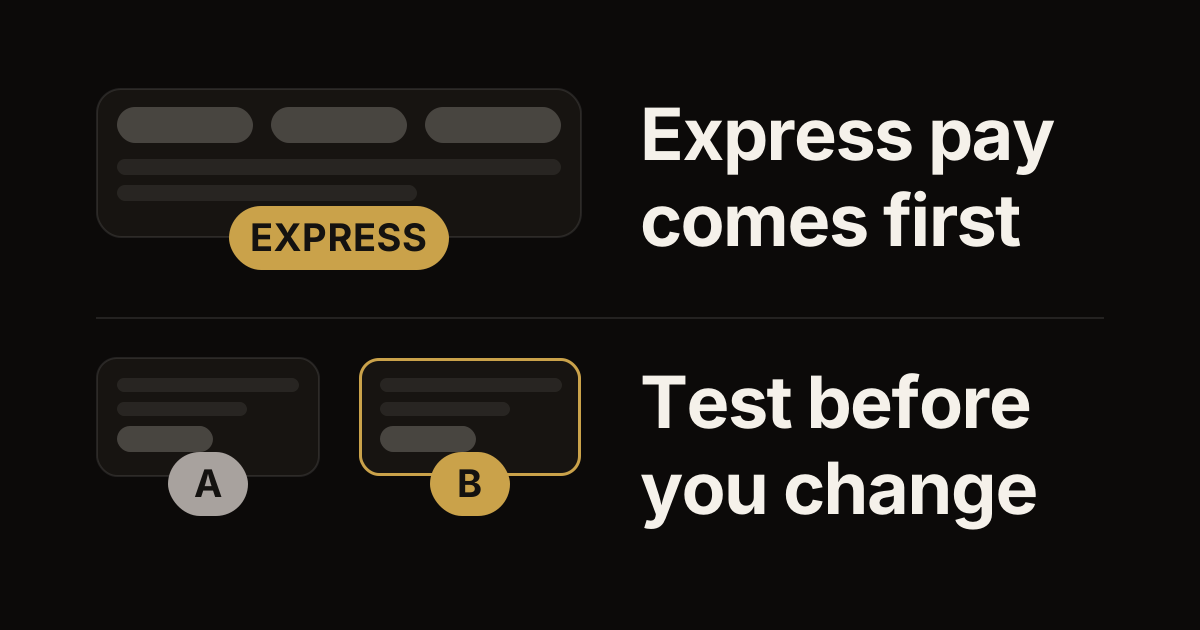
Express pay buttons, such as Shop Pay, Apple Pay, Google Pay, Amazon Pay and PayPal, let returning customers pay with details they've already saved. On Shopify's checkout, they sit in an Express Checkout section at the beginning of the checkout, and Shopify orders them for each customer to show the fastest method first. Some of them can also go on your product pages, so a customer can skip the cart and go straight to checkout.
Shop Pay is Shopify's own. It saves a customer's email address, payment method and shipping and billing details, so they don't type them again on their next order, and it comes with Shopify Payments.
On Shopify Plus, a custom app can hide express options when certain customer or cart conditions are met. Shopify warns that hiding them might hurt your conversion rate, so have a clear reason before you do.
Address suggestions are already on
When customers type a shipping or billing address, Shopify's checkout suggests complete addresses from services such as Google Autocomplete. It's on by default for every Shopify store, in a list of countries that includes the United States, Canada, the United Kingdom and Australia; customers elsewhere type their address as usual. You can turn it off in the checkout and accounts editor, and on Shopify Plus you can use a third-party address app instead.
Address validation is a separate setting. When it's on, Shopify points out a shipping address that looks wrong and suggests a fix before the order is placed, which helps cut delayed or failed deliveries. To turn it on, go to Settings > Checkout, click Address collection under Advanced preferences, and select Validate shipping address. It covers shipping addresses in a list of countries that includes the United States and Canada.
What you can change on your plan
Every plan from Basic up gets the checkout and accounts editor. There you add your logo, colors, fonts and a background to the checkout, and add apps from the Shopify App Store to the thank you and order status pages.
Shopify Plus opens up the rest of the checkout: apps can change the information, shipping and payment steps, including checkouts from draft orders. Developers build those changes as checkout UI extensions, small pieces of interface that Shopify shows inside its own checkout. Our guide to what Shopify Plus adds covers the rest of the upgrade.
Rules about discounts, shipping options and payment methods run as Shopify Functions, small programs that run inside Shopify's checkout. Public apps from the Shopify App Store that use Functions work on every plan; custom apps built with Functions need Shopify Plus. Shopify's free Checkout Blocks app works from the Basic plan up, with some features held back below Plus.
If your checkout rules ran as Shopify Scripts, they stopped on June 30, 2026: here's what to check now that Scripts have stopped. For how discount Functions work, see our Discount Functions deep dive.
Test a change before everyone sees it
Shopify's Rollouts, under Markets > Rollouts in your admin, schedule and test changes to your theme, your checkout and accounts pages, discounts and product catalogs. There are three kinds. A Launch makes a change permanent. An Event runs it for a set period, then rolls it back. An Experiment shows the change to some visitors and not others, so you can compare the two. Rollouts work on the Basic plan or higher; experiments need the Grow plan or higher.
In an Experiment, Shopify splits visitors between a control group, who see your current checkout, and a treatment group, who see the change. An experiment can hold one change to your checkout and accounts configuration, and theme, catalog or discount changes too, but change one thing at a time, so you know what made the difference. By default the split is 50/50 and the experiment ends 90 days after it starts; you can change both before you save it. For a checkout change, Shopify reports the checkout conversion rate: the share of visits that reached checkout and ended in a purchase.
A few things to know before you start. Every visitor gets a group, but only visitors who agree to tracking are counted in the results, and bot traffic isn't counted. You can't filter the results by device or by country. Checkout changes apply only to your online store, so a headless storefront's checkout can't be tested this way. And decide how long the test will run before it starts, then let it run: early results swing, and stopping as soon as one version looks ahead can pick the wrong one.
What to measure
Shopify's Conversion rate breakdown report, under Analytics > Reports in the Behavior category, shows the path visitors take through your store and checkout: all sessions, sessions with cart additions, sessions that reached checkout, and sessions that completed checkout. Watch the last two steps: if many sessions reach checkout but few complete it, the checkout is the place to look.
One caution when you compare months: Shopify changed how its analytics count sessions between September 21 and 23, 2026. Sessions and conversion rates before and after that might not line up, even when nothing changed in your store.
A checklist for your checkout
- Check your layout under Settings > Checkout: one page, unless you chose three.
- Turn on the express pay methods you offer, such as Shop Pay, and check that they show at the start of checkout.
- Check that address suggestions are on, and turn on address validation if you ship to a country it covers.
- Add your logo, colors and fonts in the checkout and accounts editor.
- List the checkout rules your store relies on, such as discounts, shipping options and payment methods, and check that each one still works, above all if it was a Script.
- Change one thing at a time, and test it with an experiment if your plan has them.
- After any change, place a test order to see the checkout the way a customer does.
Where to go next
Speed matters before the checkout too: our theme performance playbook covers making the store itself faster. For wholesale checkouts, with payment terms and PO numbers, see the B2B checkout extensions guide.
If you'd like help with your checkout, talk to us. It's part of our performance and conversion services.
Work with us
Thinking about your next Shopify project?
We build and migrate Shopify stores for brands that care about performance. If this article sparked something, tell us what you’re working on.
Start a conversation