The short version
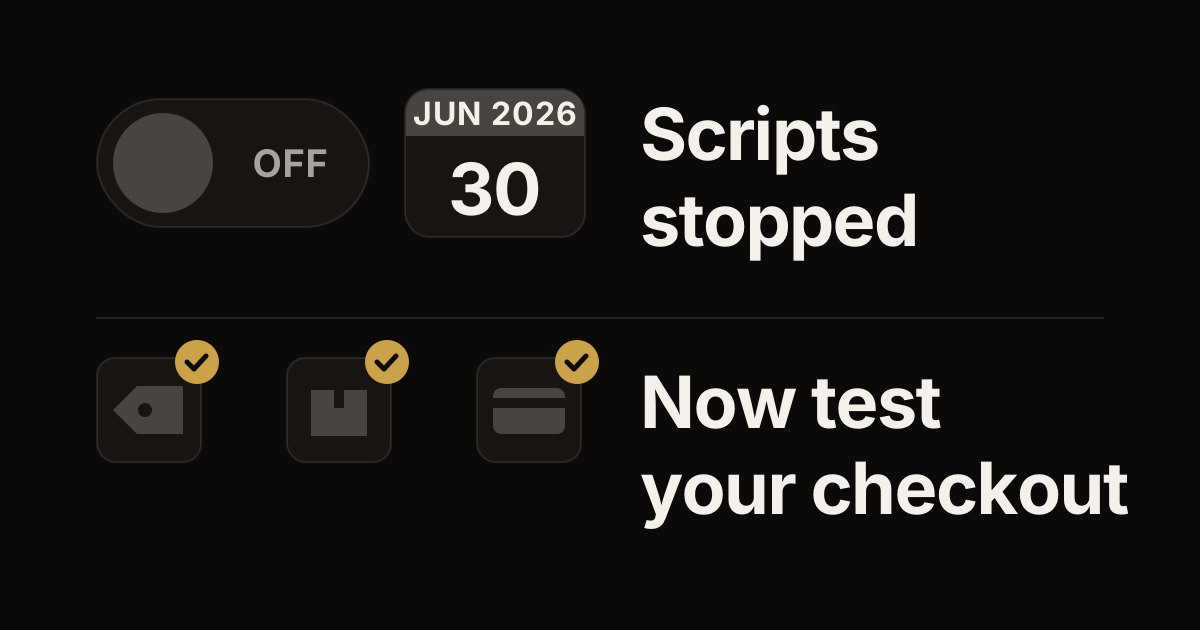
- Shopify Scripts stopped running on June 30, 2026. Editing and publishing them had already ended on April 15. Any Script still published on your store was turned off.
- If your store used Scripts for deals, shipping options or payment methods, those rules no longer run. Your checkout now works without them.
- Shopify's replacement is Shopify Functions, which come inside apps. Apps from the Shopify App Store and the discounts built into your admin cover many simple cases.
- Test your checkout now: every deal, shipping option and payment method you count on. The checklist is below.
Shopify Scripts were small pieces of code that changed what shoppers saw in the cart and at checkout. They were written in Shopify's Script Editor app, in a limited version of the Ruby programming language. If yours were set up years ago, you may not remember exactly what they did.
Shopify ended Scripts in two steps, as its developer changelog announced. From April 15, 2026, nobody could edit or publish a Script. On June 30, 2026, every Script stopped running. Shopify's help center now says that any Script still published on a store was turned off and no longer works.
This guide covers what Scripts did, what replaces each kind, and what to check on your store. The details come from Shopify's help center and developer docs as of October 2026.
What Scripts did
There were three kinds of Scripts, and a store could publish one of each at a time.
- Line item scripts changed prices and gave discounts on the items in the cart. Stores used them for deals like buy one, get one free, "buy two, get 10% off," lower prices for bigger quantities, and discounts on products with a certain tag.
- Shipping scripts changed the shipping options at checkout. They could rename, hide or reorder options, change their prices and take money off shipping.
- Payment scripts changed the payment methods at checkout. They could rename, hide or reorder them.
Stores could also add code to their theme to show a Script's deal in the cart, such as the original price next to the discounted one. Shopify's help pages explained how, because customers want to see how a discount was worked out.
What stopped on June 30
When a Script stopped, the rule it ran stopped with it.
- A deal that a line item script gave no longer applies in the cart.
- Shipping options that a shipping script renamed, hid, reordered or discounted now show without those changes.
- Payment methods that a payment script renamed, hid or reordered now show without those changes.
A shopper might simply see a higher total than your ad promised, or a shipping option or payment method you meant to hide. That's why the checklist below starts with testing.
What replaces each kind of Script
Shopify's replacement for Scripts is Shopify Functions. A Function is a small piece of custom code that runs inside Shopify itself. It's installed as part of an app, and you set it up in your Shopify admin like other settings, without touching code.
Developers build Functions with Shopify's Function APIs, one for each kind of job. An API is a set of building blocks a developer works with. Here's how each kind of Script maps to them:
- Deals (line item scripts): the Discount Function API handles discounts, and one discount can take money off products, the order and shipping at the same time. For bundles, or for changing how items look and are priced in the cart, there's the Cart Transform API.
- Shipping options (shipping scripts): the Delivery Customization API can rename, sort and hide delivery options. Shipping discounts go through a discount instead.
- Payment methods (payment scripts): the Payment Customization API can rename, reorder and hide payment methods.
Many simple deals don't need a Function at all. Your Shopify admin already has amount-off discounts, buy X get Y discounts and free shipping discounts, as codes or as automatic discounts. For tiered discounts and other advanced deals, Shopify's help center points to discount apps in the Shopify App Store.
Your plan matters here. Stores on any plan can use apps from the Shopify App Store that contain Functions. Only stores on Shopify Plus can use custom apps with Functions, meaning apps built just for one store. If you're weighing that step, see Shopify or Shopify Plus: what actually changes when you upgrade.
A checklist for your store
Work through these in order. Test on a computer and on a phone.
1. Find out what your Scripts did
Shopify's help center describes a Shopify Scripts customizations report in your admin. It lists the Scripts that were active before June 30, 2026, with their names, descriptions and links to their code. For each one, it suggests apps built with Functions or a Function guide to follow. To open it, go to Apps, then Script Editor, and click Replace Shopify Scripts in the banner. You can export the report as a CSV file. Save a copy for your records. If you can't open it, ask whoever wrote your Scripts for a copy of the code.
2. Test every deal you advertise
Shop your store the way a customer would. Shopify's own advice for Scripts was to visit your store as a customer and do the things that set them off. Add the products for each deal to the cart: buy one get one, quantity breaks, bundles and anything tied to a tag or a collection. Check the price on each line and the total. Then try your discount codes and automatic discounts. Write down anything that looks wrong.
3. Test your shipping options
Go to checkout with a few different addresses: one nearby, one far away, and one in each country you ship to. Check which options appear, their names, their order and their prices. If a Script used to hide an option for certain products or customers, see whether it's showing again.
4. Test your payment methods
At the payment step, check which methods show up and in what order. If a Script used to hide or rename a method, for example for large orders or for some countries, see what shows now.
5. Place a test order
A test order checks the whole path, from cart to confirmation email. Shopify lets you place one through its test payment gateway, or with Shopify Payments in test mode, and you aren't charged. While your payments are in test mode, customers can't place real orders. So pick a quiet time, and switch test mode off when you're done.
6. Look for leftover messages
Check product pages, the cart and any banners for deals that no longer run. If a message promises a discount, either rebuild the discount or take the message down.
7. Decide what to rebuild
For each old rule, choose: rebuild it or let it go. Shopify's help center says you don't need to recreate a customization you no longer use. For the rest, start with the simplest fix that works: a built-in discount first, then an app from the Shopify App Store, then a custom Function.
When to get help
You can do much of this yourself. Bring in a developer when one of these is true:
- The report lists rules that no built-in discount or app covers.
- One deal depended on several rules working together.
- Nobody on your team knows what your Scripts did, and the report doesn't make it clear.
- You need a custom app with Functions, which takes the Shopify Plus plan.
If you work with a developer, point them to our Discount Function API deep dive. It covers buy-one-get-one deals, tiered pricing and bundles in code.
If you'd rather hand it off, send us your Scripts report or a list of the deals and checkout rules that stopped. We'll sort them into what a built-in discount or an app can cover and what needs a custom Function. Our app development page has more on how we build them.
Work with us
Thinking about your next Shopify project?
We build and migrate Shopify stores for brands that care about performance. If this article sparked something, tell us what you’re working on.
Start a conversation