WooCommerce migrations are a different animal from Magento. With Magento you usually inherit a clean catalog tree, a finite SKU count, and a developer who once cared about URL structure. With WooCommerce you inherit whatever the previous owner glued together over five years of theme switches, plugin churn, and "let's just make it work" decisions. Permalinks change with the wind. The /shop/ and /product-category/ paths might be there, or they might be hidden behind /buy/, /catalog/, or a translated slug a German tab leaked years ago.
The technical migration to Shopify Plus is not actually harder than Magento — Shopify's URL structure is simpler. The hard part is the legwork of finding what URLs actually exist on the live WooCommerce site, mapping them to Shopify equivalents, and watching the search-console signal during the cutover so you catch the redirects that don't fire. This is the field guide for the SEO portion of a Woo → Shopify Plus migration. The catalog import, theme rebuild, and app porting all live in their own playbooks; here the focus is what keeps the rankings alive.
The WooCommerce URL gap
Shopify's URL structure has four rules and one exception. /products/{handle} for product detail pages. /collections/{handle} for category-style listings. /pages/{handle} for static content. /blogs/{blog-handle}/{post-handle} for blog posts. The exception is /collections/{handle}/products/{handle} — the "scoped" product URL — which exists but is a footgun: Google chooses one canonical anyway, and serving the same product under multiple paths splits link equity.
WooCommerce has no equivalent rule. Out of the box you get /shop/ as the catalog root, /product-category/{slug}/ for taxonomies, and /product/{slug}/ for products. But the moment a WordPress admin opens Settings → Permalinks and clicks the Custom Structure radio, all bets are off. We have seen the following in the wild:
- /shop/{slug}/ instead of /product/{slug}/ — WooCommerce's "Shop base" permalink setting
- /buy/{slug}/ when a previous theme swapped the product slug to read more like an action
- /produkte/{slug}/ when a localization plugin rewrote the path and nobody put it back
- Nested category paths like /product-category/men/jackets/leather/ that need flattening because Shopify collections do not nest
You cannot just copy the URLs over. You have to enumerate them, classify them, and decide where each one lands on Shopify. Most of the redirect work goes here, not in the cutover itself.
The deeper trap is product attributes. WooCommerce attributes (size, color, material, brand) are often surfaced as URL paths or query strings — /product-category/jackets/?attribute_color=black is a common shape. Those URLs do not exist on Shopify by default. If they were getting indexed and earning organic traffic, you need to recreate them as collection pages with proper handles before cutover, or the redirect target is the parent collection root and the search ranking evaporates.
Run a Screaming Frog crawl of the entire WooCommerce site before doing anything. If you have GSC access, also export the top 1000 indexed URLs sorted by impressions over the last 90 days. The gap between the two lists tells you what was traffic-bearing but not in the obvious crawl path — usually paginated archives, attribute filter URLs, and old blog posts with /?p= permalinks that never got rewritten when the site moved to pretty permalinks.
Mapping URL types
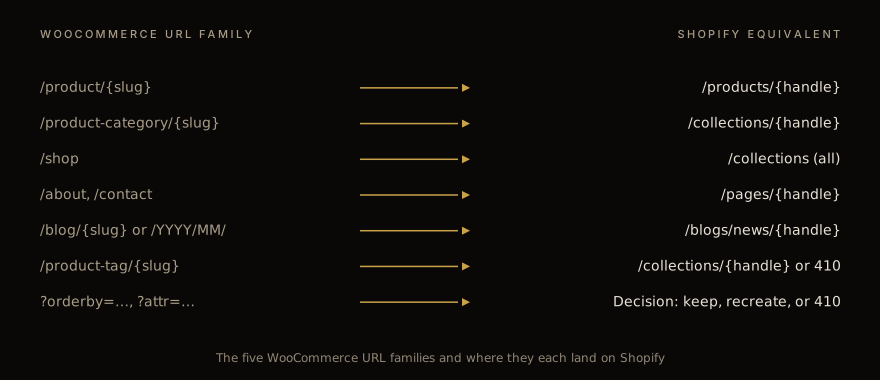
Once you have the full crawl, classify every URL into one of seven buckets. Product detail (/product/X) maps to /products/X. Category (/product-category/X) maps to /collections/X with any nesting flattened. Shop root (/shop) is the exception: Shopify can't redirect any URL that begins with /shop, so neither the shop page nor product URLs under a /shop/ base can be redirected. Update the links you control to point at /collections/all, the page Shopify generates that lists every visible product. Static pages (/about, /contact, /shipping-policy) map to /pages/X. Blog posts (/2024/03/15/title or /?p=NNNN) map to /blogs/news/title — and we will come back to blog handling shortly. Tag archives (/product-tag/X, /tag/X) map either to /collections/{tag} if the tag is traffic-bearing, or get no redirect, and answer 404, if it was thin content. Filter URLs (?orderby=price, ?attribute_color=black, /page/2) need a per-URL decision.
For the filter bucket, the call is whether the URL is indexed AND earning impressions in GSC. If both are true, recreate the destination as a Shopify collection. If only one or the other, let it answer 404.
Letting a dead URL answer 404 is underrated. On Shopify, a URL with no page and no redirect answers 404 (not found), and Google treats a 404 like a 410 (gone): it removes the URL from its index. If you 301 every dead URL to the homepage, Google may treat those redirects as soft 404s, pages it counts as missing. We have seen sites lose 40% of indexed pages this way, with the recovery taking three months instead of three weeks.
Slug normalization is the next sub-task. WooCommerce slugs often contain stop words and inconsistent casing — "Mens-Black-Leather-Jacket-XL" might be the slug for a product whose Shopify handle should be "mens-black-leather-jacket-xl". You can let Shopify auto-handle that during import, but be aware: the Shopify handle is generated from the title at import time, and if the imported title differs from the WooCommerce one (capitalization, trailing whitespace, an em-dash where there used to be a hyphen), the handle will not match what you redirected to. Set the handle explicitly in your CSV import. Never trust the default.
Internationalized stores are the worst case. If WooCommerce was running WPML or Polylang with /de/, /fr/, /es/ paths, and you are consolidating to a single Shopify store with Shopify Markets, the redirect map balloons by 4-5x. Each variant of every URL has to be mapped to the corresponding locale path on the Shopify side (/de-de/products/X, /fr-fr/products/X, and so on). Don't forget the /de/ blog posts with their own slugs — the /de/2024/03/15/article slug is often a translation, not a transliteration of the English one, which means the mapping cannot be programmatic. It is real translation work.
Building the redirect map
Shopify accepts redirects as a CSV file imported from its URL redirects list (in the admin, go to Content > Menus, click URL redirects, then Import), or through the Admin GraphQL API. The format is two columns, Redirect from and Redirect to: the old path, and the new URL, which can be a relative path or a full URL.
There are three operational gotchas that bite teams shipping their first Woo → Shopify migration.
The first is the store's cap: up to 100,000 URL redirects, or 20,000,000 on the Plus plan. We have rarely come near it on a single Woo migration. For a very large set, Shopify suggests a third-party app; we push them through the Admin GraphQL API in chunks of 5,000.
The second is order-sensitivity. If you have a redirect From: /products/foo To: /products/bar AND From: /products/bar To: /products/baz, Shopify will follow the chain — but only if the rules are uploaded in the right order. Test redirect chains in a staging Shopify development store before pushing to prod. We always upload to a clone first, run the live redirect map through Screaming Frog, and confirm that no chain exceeds two hops.
The third is Shopify's automatic redirect creation. When you publish a product whose handle changes, Shopify auto-creates a redirect from the old handle to the new one. That sounds helpful until you realize it only fires for handle changes within Shopify, not for redirects coming in from a previous platform. Don't rely on it.
When to load the redirects: Shopify's own migration guide says you can set them up in advance, before you move your domain, so that visitors who follow an old link after the move land on the right page. Before you load them, check that every target URL exists on the new store, and plan the upload and the domain switch together, so you recheck the map if the date moves. We saw a 40-minute traffic outage on a Friday afternoon when a merchant pre-loaded the redirects for an early start, then changed plans and pushed the cutover to Monday.
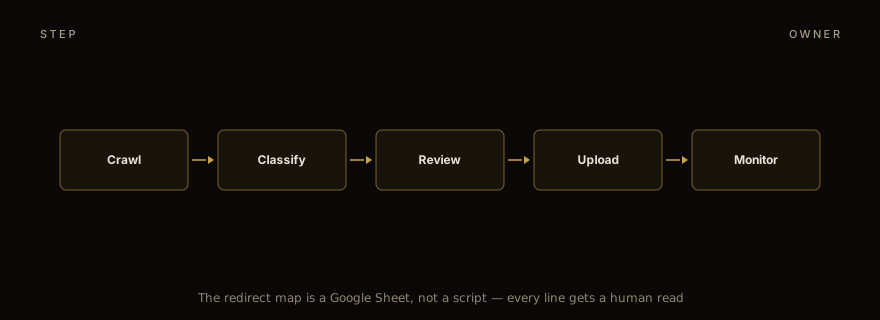
For the actual mapping work, the unglamorous tool of choice is a Google Sheet. Column A: WooCommerce URL. Column B: classification (one of the seven buckets above). Column C: Shopify URL. Column D: redirect status (301 / 404 / new). Have someone walk through and approve every row. It is tedious — a 4,000-URL site is two days of human review — and that is the point. The sheet catches the issues you cannot catch programmatically. "This product was discontinued in 2022 but the URL still gets 200 visits/month, let's send it to a similar in-stock product instead of letting it 404." That decision needs a human who knows the catalog.
Handling the WordPress blog
Most WooCommerce stores have a WordPress blog attached. Either /blog/ or /news/ as the parent path, posts at /blog/post-slug/ or /YYYY/MM/DD/post-slug/. The blog often outranks the storefront for informational queries — "how to clean a leather jacket" type content. Losing the blog loses the funnel that feeds product page impressions.
Shopify forces all blog posts into /blogs/{blog-handle}/{post-handle}. You can name the parent blog whatever you want — most teams pick "news", "journal", or "blog". Pick one and commit to it; renaming the blog handle later means another redirect cycle.
The WordPress to Shopify content port is its own task. WordPress posts are HTML; Shopify blog content is also HTML, but it renders through a Liquid template. WordPress shortcodes will not work on the Shopify side — [gallery], [embed], any plugin shortcode renders as literal text on the rendered page. Strip them in your import script before they hit Shopify, or replace them with the appropriate static HTML. The most common offender is the block editor (Gutenberg) markup: posts written in WordPress's block editor carry <!-- wp:paragraph --> comments, which survive the export and need a regex pass.
Featured images are the next gotcha. WordPress stores them as a post meta key (_thumbnail_id pointing to an attachment); Shopify wants them as a field on the article. Fetch the featured_image URL from the WordPress REST API (/wp-json/wp/v2/posts/{id}?_embed), upload the binary to Shopify Files, and link it on the article during import. Don't hotlink to the WordPress server — once the WP hosting is decommissioned, the images vanish.
Image preservation is non-negotiable. The blog body usually has 5-15 inline images per post. WordPress stores them in /wp-content/uploads/ with paths like /wp-content/uploads/2023/03/foo-1024x768.jpg. After cutover, those URLs return 404 unless you mirror the entire /wp-content/uploads/ tree to your CDN, OR rewrite every image URL in every blog post to point to a Shopify Files URL. We always do the rewrite. Mirroring is fragile — every WordPress security update can move the path, and the hosting bill creeps because the files are not coming through a CDN.
Comments are a separate question. Shopify's native blog comments are basic: you can publish them straight away or hold them for moderation, and Shopify flags likely spam automatically, but there are no threaded replies (for those, Shopify suggests a blog app from the Shopify App Store). If the WordPress site had Disqus or another third-party comments service, that ports cleanly because the embed is just JavaScript with a thread identifier. If it had native WordPress comments, the comments themselves are stored as rows in wp_comments — there is no clean import path into Shopify. The pragmatic call is to export the top-N most-engaged comment threads as static HTML appended to the bottom of each migrated post and disable comments on Shopify going forward. Old conversations stay readable; no new ones get added. SEO-wise, the indexed long-tail keyword content from the comment threads is preserved.
Schema migration
WooCommerce themes typically emit Product schema (schema.org/Product) on product pages, plus the standard Article schema on blog posts. Shopify's default Online Store 2.0 themes also emit Product schema — but the emit may differ in shape from what the WooCommerce site was producing. The mismatch can cost you rich-result impressions if Google had been showing review stars or price snippets for your products.
Audit your current rich-result performance before cutover. In Search Console, the Product snippets report (under Shopping) shows how many product URLs have valid product schema. Note the count. After cutover, watch that count weekly: if it drops by more than 10% week over week, your schema is not matching what Google expected for the same product.
The most common mismatch is review schema. WooCommerce has native product reviews stored in wp_comments with a comment_type of 'review'; many WC themes emit AggregateRating with a count and average. Shopify's default theme does not emit AggregateRating unless you have a reviews app installed (Judge.me, Yotpo, Stamped, Loox — pick one). If you are porting reviews from WooCommerce — and you should, that data is years of trust signals — you need both: import the reviews into the new app AND verify the app's theme integration emits AggregateRating with the same shape (review count, score range, review body) as before.
Product variant schema is another trap. WooCommerce variations are typically modeled as a single Product with hasVariant arrays or a top-level ProductGroup; on Shopify, a theme that uses Liquid's structured_data filter outputs a ProductGroup for a product with variants and a Product for one without. Same data, possibly a different schema graph. Validate with Google's Rich Results Test on a representative sample of products before going live, ideally on a staging Shopify store with a few migrated products in place.
Finally, breadcrumb schema. WooCommerce themes often emit BreadcrumbList from /shop → category → product. Shopify's default rendering of /collections/foo/products/bar produces an analogous breadcrumb if and only if the theme has it wired in the schema partial. Check the theme's templates/product.json or sections/main-product.liquid for a BreadcrumbList JSON-LD block. If it is missing, add it before launch — losing breadcrumb rich results is a small but cumulative loss.
GSC monitoring through cutover
The first 30 days post-cutover is when you find the redirect map's gaps. Submit the new sitemap.xml to Google Search Console on cutover day — same hour, ideally. Watch the Page indexing report. There are three signals to pre-stage your alerts on.
URLs Google cannot crawl. Check that robots.txt is open (Shopify ships a sensible default but it can be customized — verify yours). Confirm canonical tags point to the new URL on every redirected destination. Make sure no redirect chain ends at a noindex page.
Soft 404s. These are URLs that returned an HTTP 200 but Google decided look like a not-found page based on content patterns. The usual symptom is that you redirected to a thin collection page or to the homepage. Fix by removing those redirects, so the old URLs answer 404, or by pointing them to a destination with substantive content (a parent category, a similar product, a curated list).
Redirect chains. Google's crawlers follow up to 10 redirect hops, and Search Console's Page indexing report lists a chain that's too long under "Redirect error". Keep them short anyway: Google recommends ideally no more than 3 hops, and every hop adds load time for shoppers. Run all your live redirect URLs through a redirect-checker. Screaming Frog can do this in batch. The most common cause of unintended chains is a stack of platform-default redirects: www to apex, http to https, Shopify's own handle alias, and your original WooCommerce handle. That stacks to four hops without anyone noticing.
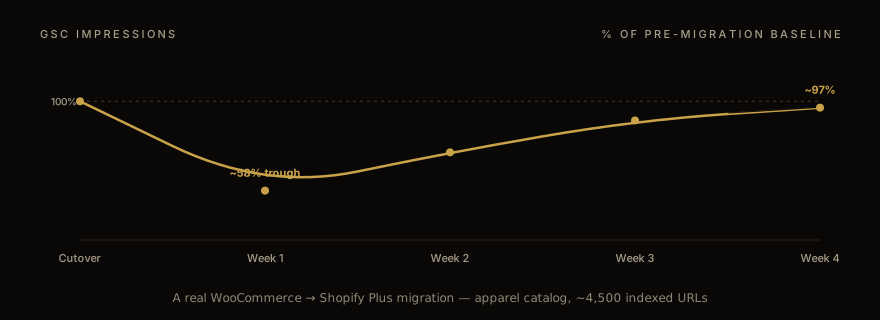
Impressions will drop in week one regardless of how clean your work is. We see 30-50% drops from baseline as Google revalidates. Week two should sit at 65-80% of baseline; week three at 85-95%; week four near full recovery if the redirect map is correct. If you are still below 80% at the end of week three, you have a structural redirect issue and you should be running fresh crawls and diffing the output, not just waiting.
The pattern below is from a recent Shopify Plus migration — apparel store with ~12,000 SKUs, 4,500 indexed pages, a five-year-old WooCommerce install with three previous theme generations layered into the URL slugs. You can see the trough in week one, the gradual climb, and the full recovery by week four.
The other monitoring habit: weekly GSC review for the first 6 weeks. Check the queries report for terms you used to rank on. If a term is missing from the new corpus, the page Google was ranking either did not get indexed (redirect target 404s, or canonical points back at the old URL), or the new content under that URL no longer matches the query intent.
When to call it done
The migration is "done" when four conditions hold for a full week. GSC impressions are back within 5% of pre-migration baseline. Top-100 keyword positions (from your existing rank-tracker) are within 2 positions of pre-migration on average. No URLs in Search Console's Page indexing report remain under "Redirect error" or "Soft 404". Click-through rate from organic is within 10% of baseline — CTR can drop slightly because the new title tags and meta descriptions are different, and that is fine, but it should normalize.
In our experience, the four conditions converge 4-8 weeks after cutover for a clean migration of a mid-sized catalog, and 6-10 weeks after cutover for larger catalogs (50K+ SKUs). The deciding factor is rarely the technical work; it is whether the WooCommerce site had clean URLs to start with, or whether the redirect map had to handle five years of slug churn, plugin permalink overrides, and translated path variants.
One last operational note: do not sunset the WooCommerce hosting until the migration is verified done. Keep it running on a temporary domain — staging.oldsite.com behind a noindex header — so you can compare before/after for any URL that turns up in a "where did this rank" investigation. We hold this for 90 days minimum, then archive a static crawl of the entire WooCommerce site to S3 in case we need to reference content during the next 12 months.
Migration projects are won and lost on the 30-day post-cutover work, not the cutover itself. Plan accordingly.
If you are staring at a Woo → Shopify Plus migration and the catalog is bigger than 5,000 SKUs or the URL history is messy, talk to us before you build the redirect map. We will look at your GSC data and tell you which redirect categories are going to bite, which usually saves a week of trial and error.
For the catalog-side counterpart on a different platform, Read the Magento → Shopify Plus playbook. For an end-to-end view of what one of these engagements looks like — discovery, scoping, build, cutover, post-launch — see the migration services overview.
Work with us
Thinking about your next Shopify project?
We build and migrate Shopify stores for brands that care about performance. If this article sparked something, tell us what you’re working on.
Start a conversation