People pick Squarespace for the design, which is why moving to Shopify worries them. The look is the part you can see, but it's rarely what goes wrong. What goes wrong is the material Squarespace doesn't export: store pages, featured and variant images, image alt text, reviews. And then there are the URLs Google has spent years learning.
This guide covers the move in the order we run it, from the exports to launch day, with a phased plan and a checklist at the end. Our Squarespace to Shopify migration page covers why stores make the move and what a project includes. The platform details below come from Squarespace's and Shopify's own documentation as of October 2026. Both platforms change their tools, so check the current help page before each step.
What moves, and what you rebuild
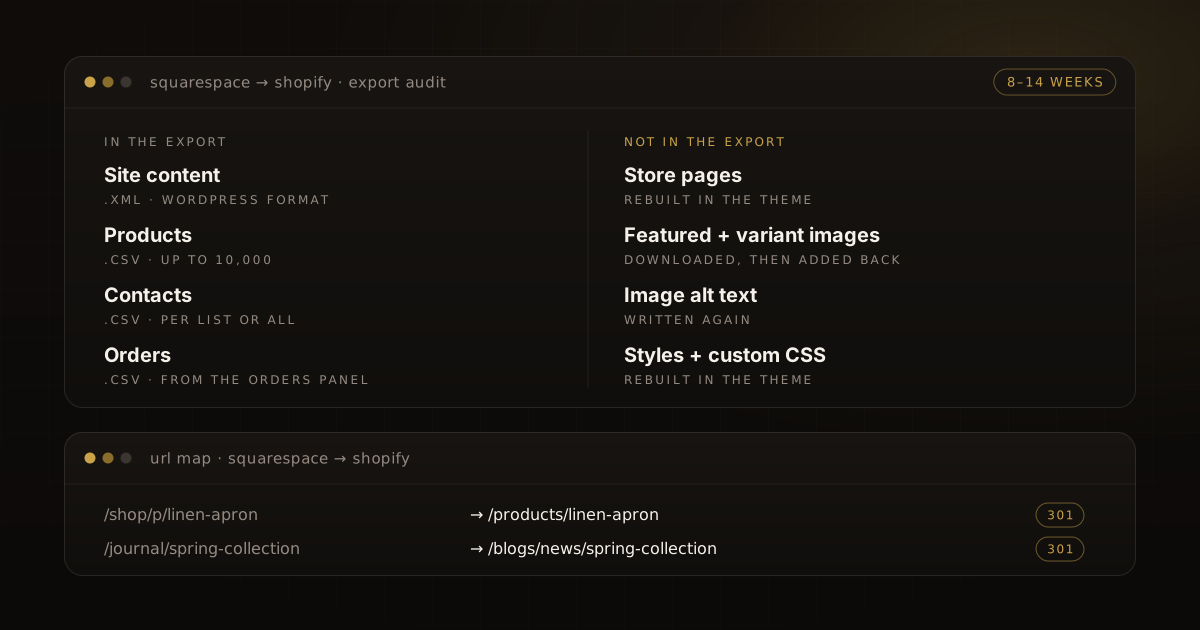
Squarespace lists three things you can export: your site content as an .xml file, your products as a .csv and your contacts as a .csv. Its order and membership screens have CSV exports of their own. Everything else is copied across or rebuilt.
- Products: exported to CSV and reshaped for Shopify's product template. The export covers physical and service products; download products aren't in it, so you set those up again on Shopify.
- Customers and mailing lists: contacts export to CSV, one mailing list at a time or all at once, and import into Shopify once the columns match Shopify's template.
- Orders: exported to CSV. Shopify has no CSV import for orders, so history comes across through a migration app or Shopify's API, if you need it in Shopify at all.
- Blog posts and basic pages: in the site export, with limits covered below.
- Store pages, galleries on 7.1 sites, page headers and footers, styles and custom CSS: not exported. They're rebuilt in the Shopify theme.
- Images and videos: no bulk export. Images download one at a time from the Asset library, so keep the site online until you have every image and video.
- Reviews: Shopify's Squarespace guide says they can't be exported or migrated, and points to adding them by hand through a Shopify review app.
- Member areas, subscriptions and forms: features, not files. Each gets a Shopify replacement, and you keep a copy of the old records.
Squarespace's exports, and their gaps
The site export
Squarespace exports site content as an .xml file in WordPress format, and it says you don't have to import it into WordPress. It carries layout pages, text and image blocks, and one blog page with its posts and up to 1,000 comments per post. If your site has several blogs, you choose which one goes into the export. It leaves out store, album, cover, index and portfolio pages, product, audio and video blocks, drafts, style settings and custom CSS. Images are the weak spot: Squarespace warns that your images might not migrate, and any image still linked to Squarespace breaks once you cancel the site.
Products
In the Products & Services panel, Export all writes your physical and service products to a CSV, up to 10,000 of them; you can also export a selection. The file leaves out featured images, variant images, product image alt text, additional product information and customer reviews. Plan for those from the start. Left alone, they're how product pages come out of a Squarespace move looking thin.
Images
Squarespace says it isn't possible to export images or uploaded videos in bulk; images download one at a time from the Asset library. On a large catalog it can be the slowest job in the project, so start it in week one and keep the Squarespace site running until every image has a home on Shopify.
Contacts, orders and members
Contacts export to CSV per mailing list or in bulk. Orders export from the Orders panel (Export data, then Download CSV), filtered by status, date range and product. Each row carries the order, payment, line items, customer and address details and the sales channel, in-person sales included. Membership orders export to CSV per pricing plan or for the whole site, with the pricing plan each member bought and when they signed up for it.
Products: from Squarespace's CSV to Shopify's
The two CSV formats differ, so the export is reshaped before import. Shopify's Squarespace guide maps the columns. Squarespace's product URL becomes Shopify's handle, categories become the product type, and title, vendor, tags, options, SKU, price, stock and weight move to their Shopify columns. Two conversions need care. Weights go to grams for Shopify's Weight value (grams) column; Shopify's guide converts pounds by multiplying by 453.6. Stock goes in as a plain number, with any text stripped.
Keep the handle stable. Squarespace's product slug is the last part of the product URL, and on Shopify the handle becomes the product URL and allows only letters, numbers and dashes. Where the slug already fits, reuse it. Each product redirect is then a predictable pattern rather than a guess.
Options need a decision before import. Squarespace allows up to six options and 250 variants per product. Shopify allows three options and up to 2,048 variants (some third-party themes stop at 100, so check the theme you choose). For a product with more than three options, split it into separate products, merge two options into one, or move the choices that don't affect stock into line item properties, Shopify's way of letting customers add custom information to a cart line.
Images come in by URL. Shopify downloads each image linked in the product file's image URL column during the import and hosts it in your store, so every link must be public. Because Squarespace's CSV leaves out featured and variant images, collect those images first, host them somewhere public for the import or upload them in Shopify afterward, then write the alt text again. Alt text is part of Shopify's product template (Image alt text), so it can travel in the same file.
Import with "Publish new products to all sales channels" turned off, review the preview, and spot-check prices, weights and stock before publishing. A product that's missing a variant option won't import, so compare counts with Squarespace. Service and download products need their own setup: turn shipping off for anything that never ships.
Customers, orders and members
Shopify's customer import needs Shopify's exact headings; it doesn't map columns for you. Shopify's Squarespace guide lists the renames. Accepts Marketing becomes Accepts Email Marketing, with yes or no. Squarespace's export has no shipping country, so you add each customer's country as an ISO code. Keep each file at 15 MB or less, and only mark yes for people who opted in to email.
Passwords don't move: Shopify can't import them from a CSV. Shopify's customer accounts sign people in with a one-time code sent to their email, with no password, and an imported customer signs in with the email on their profile.
Import products first, then customers, then any order history, so orders link to both. Turn off new-order notifications for staff first, the account owner included, or each imported order sends them an email.
Member areas need the most thought. The membership export tells you which pricing plan each member bought and when they signed up, and in Squarespace only a member can edit their own saved payment details. Treat paying members as a group to move with care: decide where the gated content lives on Shopify and how members sign up there, and tell them before launch day.
URLs and 301 redirects
Squarespace's URLs follow its page structure. A product's URL is the store page's slug, then the product slug, and on 7.1 sites there's a /p/ between them, so a product might live at /shop/p/linen-apron. Blog post URLs start with the blog page's slug, and the post URL format can add the year, month and day, so check a few real posts. Events sit under their calendar page.
Shopify uses its own patterns: products under /products/, collections under /collections/, pages under /pages/, and posts under /blogs/{blog}/, starting with a default blog called News. So /shop/p/linen-apron becomes /products/linen-apron, and a post at /journal/spring-collection might become /blogs/news/spring-collection. One catch: Shopify can't redirect URLs that begin with /shop (or with a few other paths Shopify uses itself, such as /cart and /orders). If your store page's slug is shop, as in this example, its old product URLs can't be redirected, so update the links you control, such as those in emails, ads and social profiles. Shopify's page listing every visible product is /collections/all.
Build the redirect map in a spreadsheet, one row per old URL:
- Gather the URLs that matter: what Google has indexed, what people visit (your analytics), and a crawl of the live site.
- Map store pages and categories to collections, products to
/products/{handle}, posts to the new blog and pages to/pages/{handle}. - Point a retired product at the nearest live product or collection. Shopify suggests a similar product; the home page helps no one.
- Copy the sources of any URL mappings you set up in Squarespace. Those redirects stay behind with the Squarespace site.
Shopify keeps redirects under Content, then Menus, then View URL Redirects, and imports a whole map from a CSV built on its sample file. A redirect fires only when the old URL no longer loads a page on Shopify, redirects that rely on query strings may not behave as expected, and a store holds up to 100,000 of them (20,000,000 on Shopify Plus). Import the map before the domain moves, then visit your top old URLs in a browser once you're live.
Keeping your SEO
Titles and descriptions: if you wrote SEO titles and descriptions for products, pages and posts in Squarespace, copy them into Shopify's SEO title and SEO description columns, or into each page's search engine listing. Shopify uses the product title and description when those are blank, which may not be what you wrote for search.
Structured data: on Shopify the theme outputs it, and Liquid's structured_data filter turns a product or an article into schema.org data. Before launch, view the source of a product page and a blog post on your new theme and confirm the data is there.
Sitemap and Search Console: Shopify generates sitemap.xml at the root of your domain, with child sitemaps for products, collections, blogs and pages, and keeps it current as you add content. Crawlers can't read it while the store is password protected, so submit it in Search Console as soon as you launch. If your Search Console verification depended on the Squarespace site, verify the Shopify store too: Shopify shows how to paste Search Console's meta tag into theme.liquid, and a DNS record works as well. Indexing can take from a few days to a few weeks, Shopify notes, and Google doesn't guarantee the timing.
Features, apps and payments
Make a list of every Squarespace feature and extension the store relies on, and decide for each: built into Shopify, a Shopify app, or dropped.
- Forms: every Shopify theme has a built-in contact form that sends submissions to the store's sender email address. Richer forms need a form app or service.
- Subscriptions: Shopify Subscriptions, installed from the Shopify App Store, handles recurring orders on Shopify. Its contract import moves contracts from another subscriptions app, so plan for current Squarespace subscribers to sign up again.
- Member areas and paid content: choose how they'll run on Shopify during discovery, because the choice shapes the theme.
- Reviews: pick the review app before launch, so the reviews you add by hand are there on day one.
- Gift cards: open balances move through a migration app or Shopify's API. List them before launch.
On Squarespace you take payments through Squarespace Payments, Stripe or PayPal, and in-person sales through Square. On Shopify you use Shopify Payments where it's available, or a supported third-party provider. Shopify Payments avoids the additional transaction fees that come with a third-party provider, and it includes Shop Pay, Shopify's accelerated checkout that remembers a customer's email, payment, shipping and billing details. PayPal is available too, set up in a way that depends on your country.
Set up shipping rates and taxes before launch, then place test orders: one that succeeds, one that fails, a refund, a cancellation, a full and a partial fulfillment, and an archived order.
The domain
Disconnect the domain from Squarespace before connecting it to Shopify; Shopify warns that skipping this can cause SSL certificate errors. If the domain is registered with Squarespace, you have two routes. You can keep it there and point it at Shopify from its DNS settings in Squarespace, once you've removed the Squarespace Defaults records. Or you can transfer it out: you turn off the domain lock and request a transfer code, and the transfer can take up to 15 days. A domain bought or moved in the last 60 days may be locked, and Squarespace notes you can point it at your new site while the lock runs out. Write down your current DNS records before a transfer: most providers can't keep them in place during one. A transfer also doesn't cancel your Squarespace site, so cancel that separately once the move is done. Either way, pointing the domain at Shopify takes A and AAAA records for the root domain and a CNAME for www, with the values from Shopify's domain settings, and any other A and AAAA records come off. Allow up to 48 hours for the change to reach everyone.
A phased plan: 8–14 weeks
Our Squarespace to Shopify page puts a typical migration at 8–14 weeks. The work falls into three phases:
Phase 1: discovery
Run every export and count the rows. Start downloading images. Inventory products, options, contacts, orders, members, posts, pages and extensions, build the URL list and redirect map, and decide the fate of each feature. A written plan gets your sign-off before anything is built.
Phase 2: theme and data
Rebuild the look as a Shopify theme, import products and customers, add the missing product images and alt text, move the posts and pages, and import the redirect map. Set up shipping, taxes and payments.
Phase 3: testing and launch
Test everything, place test orders, and check structured data and redirects. Then remove the password, switch the domain, submit the sitemap and test the old URLs.
The checklist
- Site, products, contacts, orders and memberships exported; row counts checked against Squarespace.
- Every product image downloaded, featured and variant images included; alt text rewritten.
- Products with more than three options restructured; download and service products set up.
- Handles chosen on purpose, Squarespace slugs reused where they fit.
- Products imported unpublished, spot-checked, then published.
- Customers imported with country codes and email consent; staff order notifications off during any order import.
- Members told how and when they move.
- Blog posts and pages moved, with old and new URLs recorded.
- SEO titles and descriptions carried over.
- Redirect map built from indexed, visited and crawled URLs, Squarespace URL mappings included, then imported.
- Theme checked for product and article structured data.
- Forms, subscriptions, member areas, reviews and gift cards replaced or retired.
- Payments, shipping and taxes set; test orders placed.
- Search Console verification moved to the Shopify store.
- DNS records noted, domain disconnected from Squarespace, then pointed at Shopify.
- Password removed and
sitemap.xmlsubmitted. - Old URLs tested after launch; the Squarespace site canceled only once every image is moved.
If you'd like us to run the move, our Squarespace to Shopify migration page shows what's included, and you can talk to us about your store.
Work with us
Thinking about your next Shopify project?
We build and migrate Shopify stores for brands that care about performance. If this article sparked something, tell us what you’re working on.
Start a conversation