A Wix to Shopify migration is a data job with a design job attached. The design part is visible, so it gets the attention. The data part decides whether launch day is quiet: which records Wix can export, which ones you copy by hand, and whether every URL Google knows about still lands somewhere useful once your domain points at Shopify.
This guide follows the order we work in, from the exports to launch day, and ends with a phased plan and a checklist. If you're still deciding whether to move, our Wix to Shopify migration page covers the why and what a project includes. The platform details below come from Wix's and Shopify's own documentation as of October 2026. Both change their tools often, so check the current help page before each step.
What moves, and what you rebuild
Sort everything on the Wix site into three piles before you touch Shopify: data Wix exports, content you copy across, and features you replace.
- Products: exported to a CSV file and reshaped for Shopify's product template. Digital products are the exception: Wix can't export them, so you set them up again on Shopify.
- Customers: your contacts export to CSV and import into Shopify once the columns match Shopify's template.
- Orders: exported to CSV. Shopify has no CSV import for orders, so past orders come across through a migration app or Shopify's API, if you need them in Shopify at all.
- Blog posts: Wix can't export them, so they're copied across.
- Pages: rebuilt as Shopify pages and theme sections. Copy the words; don't chase Wix's layouts pixel for pixel.
- Images and videos: downloaded from the Wix Media Manager and uploaded to Shopify. Free Wix images and Shutterstock media can't be downloaded, so those need replacing.
- Reviews: Shopify's Wix guide says they can't be exported or migrated, and points to adding them by hand through a Shopify review app.
- Forms, bookings, pricing plans and member areas: these are features, not data. Each gets a Shopify replacement, and you keep a copy of the old records.
Wix's exports, and their limits
Run every export early, open the files, and count rows against what you see in the Wix dashboard. Surprises found in week one are cheap.
Products
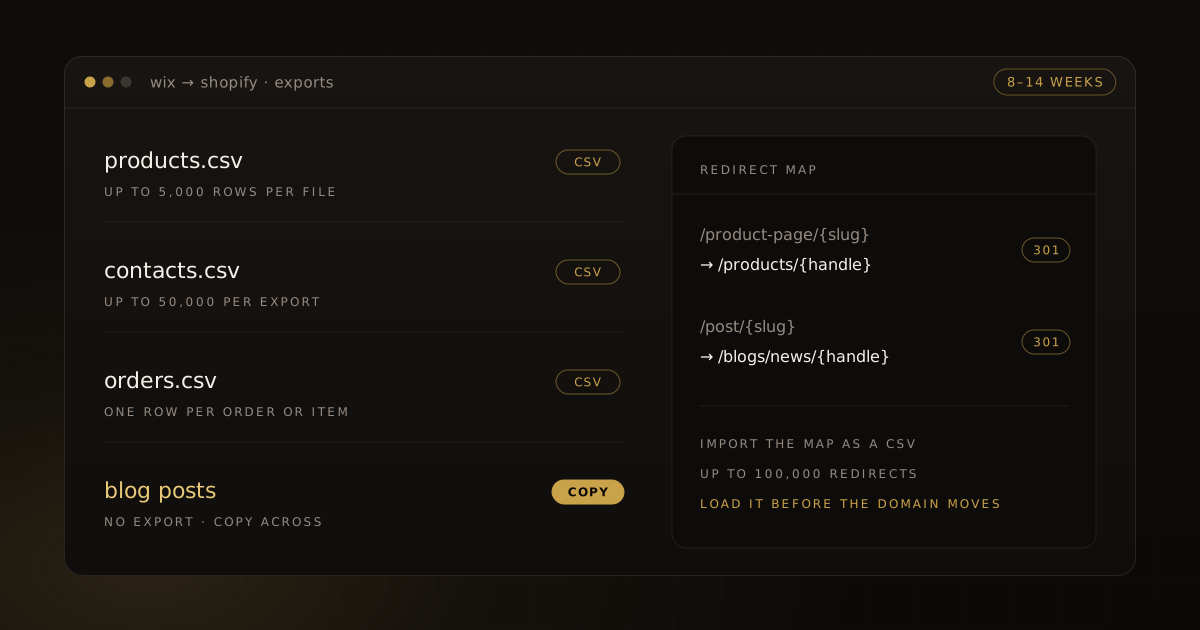
In the product list in your Wix dashboard, choose More Actions, then Export, to save all your products, a filtered set or a selection as a CSV file. Two limits matter. One file holds up to 5,000 rows, and digital products can't be exported at all. Variants take rows of their own, so a store with a few hundred products can pass 5,000 rows sooner than you'd expect. Export in batches by category if it does, and keep a note of which file holds what.
Contacts
In Contacts, the Import / Export menu exports your contacts as a CSV file (Wix also offers Google and Outlook formats). Only the site owner can run it, and one export holds up to 50,000 contacts.
Orders
In Orders, Export writes a CSV with either one row per order or one row per item purchased, with purchase times in UTC. The same export covers Wix Bookings orders. Keep the file even if none of it goes into Shopify: it's your sales history.
Blog posts
There's no blog export. Wix's help center says it isn't currently possible to export blog posts to other platforms, and the blog's RSS feed shows at most 20 posts, so that's no shortcut either. A small blog is quickest to copy by hand. For a bigger one, a migration app or a script against Shopify's Admin API saves the typing (Shopify documents both routes for blogs). Either way, carry each post's title, author, publish date, tags and featured image, and record the old and new URL as you go.
Images and videos
In the Media Manager you can select several images or videos and download them in one go, but not your whole library at once, and only ones you uploaded yourself. If product or page photography came from Wix's free media or Shutterstock, budget for replacements before launch.
Shopify's Store Migration app
Shopify also has a Store Migration app that imports Wix products and customers straight from those exports. Use it if your store can: Shopify lists it as available only to certain stores. It also sets a product with location-based prices to its highest price, and a product with more than three options comes in without its options. Shopify's own advice is to use the CSV route for products when you can.
Products: from Wix's CSV to Shopify's
The two CSV formats don't match, so the export is reshaped before import. Shopify's Wix guide walks through the mapping. The fields that matter are the handle, title, description, vendor, options and their values, SKU, price, cost, inventory and weight. Two conversions catch people out. Shopify wants one row per option value, so a Wix option that lists several values becomes several rows. Weights need converting to grams for the Weight value (grams) column.
Treat the handle with care. It becomes the product's URL on Shopify, and it allows only letters, numbers and dashes. Where the Wix slug already fits that rule, keep it as the handle: the redirect for that product is then a simple swap of /product-page/ for /products/.
Options need a decision before import. Wix allows up to six options per product, with up to 100 choices each, plus up to 10 modifiers such as a free-text engraving box. Shopify allows three options and up to 2,048 variants per product (some third-party themes stop at 100, so check yours). For a product with more than three options, split it into separate products, merge two options into one, or move the choices that don't affect stock into line item properties, Shopify's way of letting customers add custom information to a cart line. Wix modifiers usually belong there: in Wix they can't carry their own price either.
Images come in by URL. Shopify downloads every image linked in the product file's image URL column during the import and hosts it in your store, so the link has to be public. Check what your Wix export holds for images. Anything that isn't a working public link gets uploaded from your Media Manager download instead.
Import with "Publish new products to all sales channels" turned off, review the preview, then check prices, weights and inventory on a sample before trusting the rest. Products that miss a variant option don't import, so compare the product count with Wix. Then rebuild your Wix categories as Shopify collections.
Customers and orders
Shopify's customer import doesn't map columns for you: the file must use the headings in Shopify's customer template, so rename the Wix columns first. Each file can be up to 15 MB; split a bigger list. Carry each contact's email consent into the Accepts Email Marketing column, as yes or no, and only mark yes for people who opted in.
Passwords don't move: Shopify can't import them from a CSV. On Shopify's customer accounts that matters less: a customer types their email and gets a one-time code, with no password, and a customer you imported signs in with the email already on their profile.
Import in Shopify's order: products first, then customers, then any historical orders, so each order links to its products and its customer. Before an order import, turn off new-order notifications for your staff (the account owner included), or each imported order sends them an email. Then decide whether you need order history in Shopify at all. Customers who want to see past orders in their account need it; for your own records, the Wix CSV may be enough.
URLs and 301 redirects
This is the part that protects your rankings. Every URL that has search traffic, backlinks or bookmarks needs a 301 to the closest page on Shopify.
Wix's default URLs put products at /product-page/{slug} and blog posts at /post/{slug}. Both prefixes can be changed in Wix's SEO settings, so check your live site rather than assuming the defaults. Shopify has its own patterns: products under /products/, collections under /collections/, pages under /pages/ and blog posts under /blogs/{blog}/. Every store starts with a blog called News, so posts land at /blogs/news/{handle} unless you create another blog.
Build the map in a spreadsheet, one row per old URL:
- Start from three lists: the pages Google has indexed, the pages people visit (your analytics) and a crawl of the live site.
- Products go to
/products/{handle}, categories to their collection, posts to their new blog address and pages to/pages/{handle}. - Send a product you're retiring to its closest live product or collection, not to the home page.
- If you set up 301s inside Wix after an earlier move, those redirects stay behind with Wix. Add their old URLs to the map too.
Shopify's URL redirects live under Content, then Menus, then View URL Redirects, and you can import the whole map as a CSV using Shopify's sample file. Three rules from Shopify's documentation shape the map. A redirect only fires when the old URL no longer loads a page on Shopify. Redirects that depend on query strings may not work as expected. And a store can hold up to 100,000 redirects, or 20,000,000 on Shopify Plus. Load the map before the domain moves, so old links never land on an error page, then test the most-visited old URLs in a browser after launch.
Keeping your SEO
Titles and descriptions: Wix gives each product page its own SEO title and meta description. Bring them across rather than letting Shopify fall back to the product title and description, which it does when the SEO title and SEO description columns are blank. Pages, collections and blog posts each have a search engine listing in Shopify too, so copy those over as you rebuild them.
Structured data: Wix adds Product markup to product pages automatically. On Shopify the theme decides what's output, and Liquid's structured_data filter turns a product or an article into schema.org data. View the source of a product page on your new theme before launch and check that the product data is there.
Sitemap and Search Console: Shopify builds sitemap.xml at the root of your domain and updates it as you add products, collections, pages and posts. Search engines can't read it while the store is password protected, so submit it in Search Console right after launch. If your Search Console verification lived on the Wix site, verify the Shopify store as well: Shopify's help center shows where Search Console's meta tag goes in theme.liquid, and a DNS record works too. Shopify also notes that indexing can take anywhere from a few days to a few weeks, and Google doesn't promise a timeline.
Apps and features
List every Wix app, form and integration you use, and give each a fate: built into Shopify, a Shopify app, or retired.
- Contact forms: every Shopify theme has a built-in contact form, which sends submissions to your store's sender email address. Anything more involved needs a form app.
- Product subscriptions: Shopify Subscriptions, installed from the Shopify App Store, runs recurring orders. Its contract import is for moving from another subscriptions app inside Shopify, so plan how current Wix subscribers will sign up again.
- Bookings, pricing plans and member areas: decide during discovery how each will run on Shopify, since they shape the theme. Wix's order export includes Bookings orders, so keep that file.
- Reviews: choose the review app before launch, so the reviews you add by hand are in place on day one.
- Gift cards: open balances come across through a migration app or Shopify's API, so list them before launch.
Payments and checkout
Wix connects Wix Payments and more than 100 other payment providers. On Shopify you choose Shopify Payments, where it's available in your country, or a supported third-party provider. With Shopify Payments you avoid the additional transaction fees that come with a third-party provider, and Shop Pay, Shopify's accelerated checkout that saves a customer's email, payment, shipping and billing details, is part of it. PayPal works on Shopify too; how it's set up depends on your country.
Set up shipping rates and taxes in Shopify before launch. Then place test orders: a successful payment, a failed one, a refund, a cancellation, a full and a partial fulfillment, and an archived order.
The domain
Disconnect the domain from Wix before you connect it to Shopify; Shopify warns that skipping this can cause SSL certificate errors. If you bought the domain through Wix, you can keep it there and point it at Shopify: A and AAAA records for the root domain and a CNAME for www, with the values Shopify's domain settings give you. Remove any other A and AAAA records, and allow up to 48 hours for the change to reach everyone. Or you can transfer the domain away from Wix.
A phased plan: 8–14 weeks
Our Wix to Shopify page puts a typical migration at 8–14 weeks. The work falls into three phases:
Phase 1: discovery
Export everything and count the rows. Inventory products, options, customers, orders, posts, pages, media, forms and apps. Build the URL list and the redirect map, and decide each feature's fate. You sign off on a written plan before anything is built.
Phase 2: theme and data
Build the theme in your brand, import products and customers, copy the blog posts and pages across, replace stock images, and import the redirect map. Set up shipping, taxes and payments.
Phase 3: testing and launch
Test the store top to bottom, place test orders, and check structured data and redirects. Then remove the password, switch the domain, submit the sitemap and test the old URLs.
The checklist
- Products, contacts and orders exported; row counts match Wix.
- Products with more than three options restructured.
- Product handles set on purpose, Wix slugs kept where they fit.
- Images downloaded or replaced; free Wix and Shutterstock media swapped out.
- Products imported unpublished, spot-checked, then published.
- Customers imported with email consent mapped; staff order notifications off during any order import.
- Blog posts and pages copied, each with its old and new URL recorded.
- SEO titles and meta descriptions carried over.
- Redirect map built from indexed, visited and crawled URLs, then imported.
- Theme checked for product structured data.
- Contact form, subscriptions, bookings, reviews and gift cards replaced or retired.
- Payments, shipping and taxes set; test orders placed.
- Search Console verification moved to the Shopify store.
- Domain disconnected from Wix, then pointed at Shopify.
- Password removed and
sitemap.xmlsubmitted. - Old URLs tested after launch.
If you'd rather hand the work to us, our Wix to Shopify migration page shows what's included, and you can talk to us about your store.
Work with us
Thinking about your next Shopify project?
We build and migrate Shopify stores for brands that care about performance. If this article sparked something, tell us what you’re working on.
Start a conversation